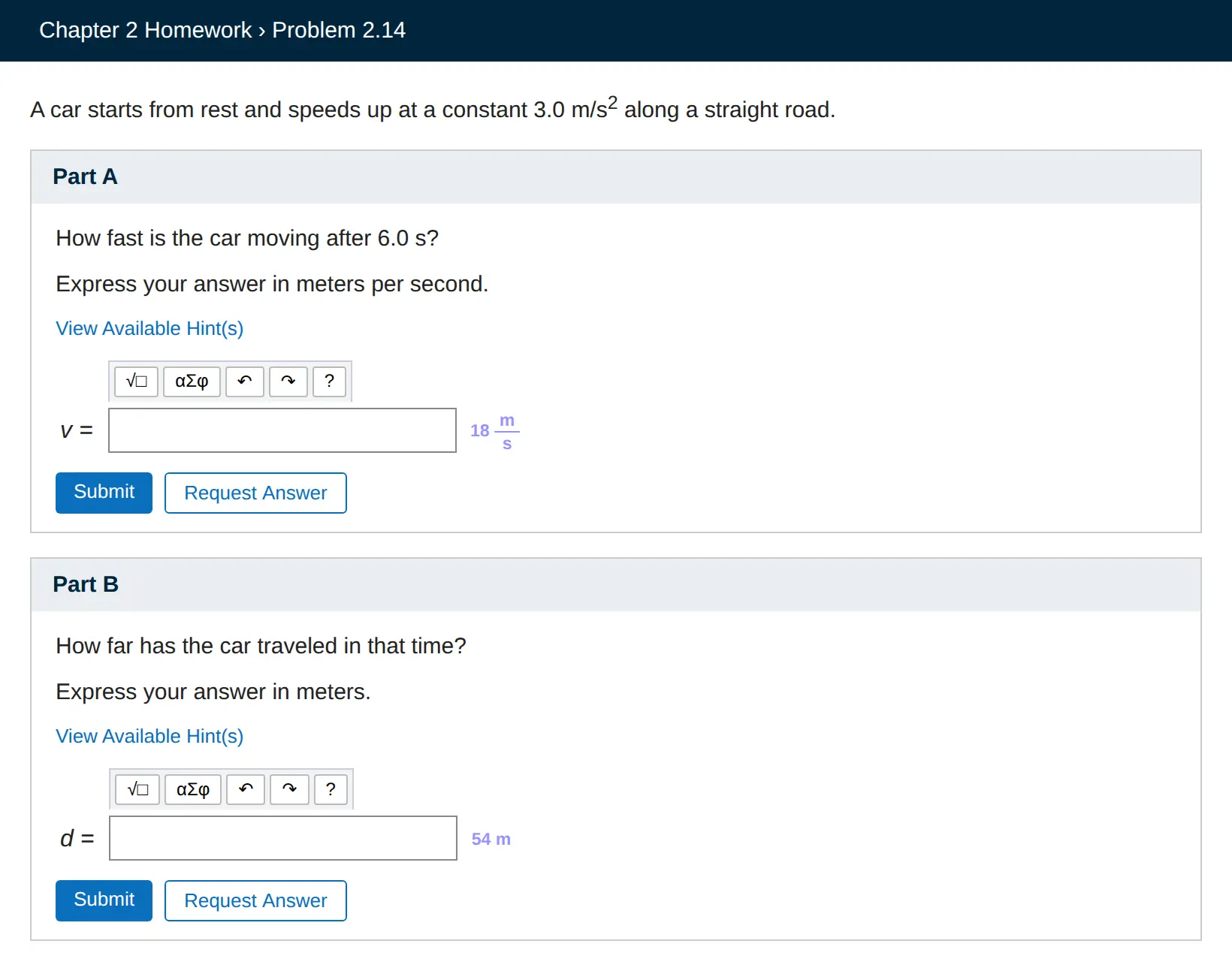

You never leave the page. No popup to open, no side panel, no screenshot to crop, and no copying the question into another tab. Click the question and the answer shows up beside it, right where you type.

No more building answers from palette buttons
Mastering's equation editor usually means clicking out a fraction, then a subscript, then a Greek letter. Click CleverNode's answer and it is copied in the editor's own format, so one paste puts in the whole expression, drawn.
How it works
- Add CleverNode to Chrome and sign in with Google. Your first 10 questions are free.
- Open your assignment as usual. Click the part heading, like "Part A" or "Part B".
- Read the answer right there, beside the box it belongs to. Click an answer to copy it. You decide what to enter, and you submit.
What it handles on Pearson Mastering
- Mastering Physics, Chemistry, Biology and the rest of MyLab and Mastering
- The equation editor, including number and units boxes
- Radio, dropdown and check all that apply questions
- Ranking and drag and drop sorting, with each item's place marked on it
- Figures and Learning Goals, described in Pearson's own words
- Hints you have opened, and video items
- The practice questions on Pearson's textbook companion sites
Good to know
The AI can be wrong, so check what it gives you, and only use it where your class allows it. CleverNode never submits anything: answers are shown, not entered. You can switch to outline only, with no answer text, and choose the answer color in the extension's settings.
Try it free
10 free questions when you sign in with Google, no card needed. After that, $10 a month for 100 questions, $15 for 300 or $25 for 700, and unused questions roll over.
Questions
Does CleverNode work on Mastering Physics and Mastering Chemistry?
Yes. Click a part heading and that part is answered, beside its box. It handles the equation editor, ranking, sorting and multiple choice.
Can I paste the answer into the equation editor?
Yes. Clicking an answer copies it in the form the Mastering editor accepts.
Does it use the earlier parts of the problem?
Yes. The problem's opening and the parts around the one you click are sent with it, so a later part that depends on an earlier one has what it needs.
How much does it cost?
10 free questions when you sign in with Google, no card needed. After that, $10 a month for 100 questions, $15 for 300 or $25 for 700, and unused questions roll over.
CleverNode on other sites: WebAssign · McGraw Hill Connect · Canvas · Cengage. See also how CleverNode compares with other tools.
CleverNode is not affiliated with Cengage, Pearson, McGraw Hill or Instructure. Product names belong to their owners.